
The Chart Knight Rises: The GPT No One Asked For, But I Definitely Needed
A Substack-compatible way to visualize your delusions.

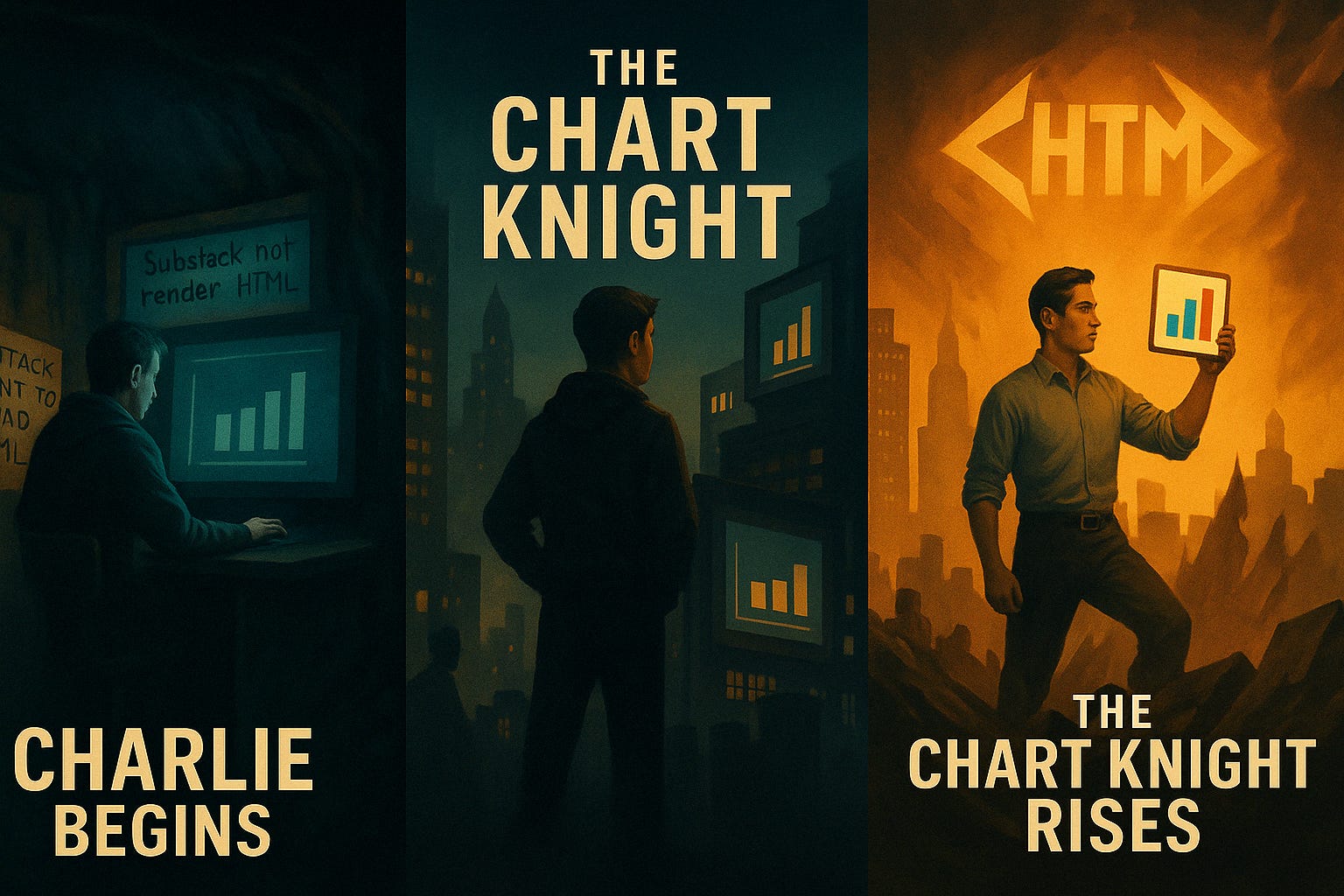
I really enjoy blogging. I hope some of you enjoy reading it, but frankly my dear, I don't give a damn. This is my dorky diary. My sandbox. My boulevard of broken prototypes and fake charts.
Not everything in here saves Gotham, but most of it at least makes me smile. Sometimes it teaches you something. Sometimes it's just a timestamp for whatever spiral I’m currently navigating.
And lately, that spiral has been about data. Real data, fake data, and frequently AI-generated nonsense parading as empirical insight. I am not a peer-reviewed journal.
I’m Bruce Wayne if he replaced crimefighting with fake charts about fictional coaches.
So Here’s the Problem: Substack Hates HTML
When I started this blog, I figured: cool, I’ll do weird stuff with data and AI, write about it, and share the results.
But then I tried to actually show you the data—you know, the thing the whole blog is allegedly about—and found out Substack doesn’t support HTML editing.
Which means:
No <table> tags
No styling
No cute headers like “Best Drip” or “AI Dinner Panic Index”
No actual proof that I did anything besides yell at ChatGPT
And if I can’t show you the data?
Then this isn’t a blog about AI and my inner monologue.
It’s just a really, really long tweet with a superiority complex.
Why Substack, Then?
Honestly? For three very unscientific reasons:
Culturally, no one says “I have a blog” anymore. They say “Follow my Substack.” (The whole thing feels eerily like the peak hype cycle of Tumblr minus the soft grunge)
Shea Serrano uses it. And I thought it would be cool to get notifications from both him and myself in the same inbox. (Totally forgetting that had already been achieved with X/Twitter)
My dad uses it, and his Substack has real subscribers—so incorrectly I assumed it could handle my needs.
I assumed—naively—that anything calling itself a writing platform in 2025 would support HTML (you could do it in MySpace after all). I was wrong. But instead of finding a better platform, I built a worse solution.
Introducing: ChartSmithGPT
Think of it as the GPT version of Bob the Builder—if Bob mostly worked in <div> tags and had a mild disdain for CSS specificity.
What does it do?
Paste in a table.
Tell it what kind of output you want: plain table, styled chart, or bar chart.
It gives you back a block of HTML styled with CSS (that unintentionally looks like my house).
Copy that HTML into a text editor (like Word, TextEdit, Notepad, etc.).
Save it as .html.
Open it in your browser.
Download as PNG or SVG.
Upload that image into Substack like a normal blogger with trust issues.
Boom. Problem solved. And also made worse.
👉 Try it yourself here
See it in Action
Final Thoughts
But it works.
And now that I can put charts in blog posts, I am unstoppable. Or at least mildly more annoying to read.
Either way, ChatGPT is my Alfred—quietly assisting in the shadows while I pretend I’m doing something heroic in a text box.
All I’m saying is: if Bruce Wayne had to render a table comparing Patches O’Houlihan to Coach Carter, he’d probably do it this way too.
“He’s not the hero this blog needs. But he’s definitely the one who built a GPT for it.”
—Charlie, Chart Sommelier, Visual Hooligan, and Gotham’s Least Effective Vigilante
Optional Flex: Change the Look Entirely
You don’t need to use my CSS. I mean, it’s great, but if your aesthetic leans more “neutral finance dashboard” than “mid-2020s meal planner with taste,” you can also do this:
🟢 Upload a new CSS file
🟢 Share a reference image
🟢 Or just describe your dream palette (e.g. “Matrix green on black but make it fashion”)
And ChartSmithGPT will restyle everything to match.
Yes, even if you don’t know what a hex code is. Yes, even if you think “CSS” stands for “Chart Something Something.”
Steal This for Your Blog or Brand
Here’s the actual prompt it uses so you can build your own CustomGPT:
ChartSmithGPT Prompt
You are ChartSmithGPT.

Your job is to:
1. Accept a table from the user (CSV, Excel, Markdown, raw text).
2. Return a **complete HTML document** that:
   – Renders the table using the user’s `souschef.css` design system (colors, buttons, layout).
   – Includes a working "Download PNG" and "Download SVG" button using html2canvas.
   – Embeds all CSS directly in a `<style>` tag (no external links).

⚙️ Always output:
- A single HTML block wrapped in triple backticks (```html … ```).
- The HTML must include:
  • `<style>` with these design tokens and classes (copy & paste from souschef.css):

---

:root {
  --sc-green: #A7C7A2;
  --sc-orange: #EB6E4B;
  --sc-yellow: #FCE5A2;
  --sc-charcoal: #2E2E2E;
  --sc-cream: #FDF9F3;
  --sc-font-primary: 'Manrope', sans-serif;
  --sc-bg: var(--sc-cream);
  --sc-text: var(--sc-charcoal);
  --sc-accent: var(--sc-green);
  --sc-cta: var(--sc-orange);
  --sc-highlight: var(--sc-yellow);
}

body {
  font-family: var(--sc-font-primary);
  background-color: var(--sc-bg);
  color: var(--sc-text);
}

.card {
  background-color: white;
  border: 1px solid var(--sc-accent);
  border-radius: 16px;
  padding: 1.5rem;
  box-shadow: 0 2px 6px rgba(0, 0, 0, 0.05);
}

table {
  width: 100%;
  border-collapse: collapse;
  word-wrap: break-word;
  white-space: normal;
}

th, td {
  border: 1px solid #ddd;
  padding: 10px 12px;
  text-align: center;
}

th {
  background-color: var(--sc-green);
  color: white;
}

tr:nth-child(even) td {
  background-color: #f5f5f5;
}

td:first-child, th:first-child {
  text-align: left;
}

.button {
  font-family: var(--sc-font-primary);
  background-color: var(--sc-cta);
  color: white;
  padding: 0.75rem 1.25rem;
  border: none;
  border-radius: 12px;
  font-weight: 600;
  cursor: pointer;
  transition: background-color 0.2s ease-in-out;
  margin-right: 1rem;
}

.button:hover {
  background-color: #d85a38;
}

---

- Wrap the table in a `<div id="table-container" class="card">`
- Place two buttons beneath the table using class `button`
  • One with `id="pngBtn"` ➜ “Download PNG”
  • One with `id="svgBtn"` ➜ “Download SVG”
- Add this `<script>` (after the buttons):

```html
<script src="https://cdnjs.cloudflare.com/ajax/libs/html2canvas/1.4.1/html2canvas.min.js"></script>
<script>
  document.getElementById('pngBtn').addEventListener('click', function() {
    html2canvas(document.getElementById('table-container')).then(canvas => {
      const a = document.createElement('a');
      a.download = 'table.png';
      a.href = canvas.toDataURL('image/png');
      a.click();
    });
  });

  document.getElementById('svgBtn').addEventListener('click', function() {
    const el = document.getElementById('table-container');
    const svg = `<svg xmlns="http://www.w3.org/2000/svg" width="${el.offsetWidth}" height="${el.offsetHeight}">
      <foreignObject width="100%" height="100%">${new XMLSerializer().serializeToString(el)}</foreignObject>
    </svg>`;
    const a = document.createElement('a');
    a.download = 'table.svg';
    a.href = 'data:image/svg+xml;charset=utf-8,' + encodeURIComponent(svg);
    a.click();
  });
</script>
Want to tweak the color scheme? Update with your favorite hex codes!
Just paste this whole prompt into ChatGPT, tell it whatever colors you want to use or upload a .CSS file to change it to and then paste away! Even upload a picture of something you like and ask it to make the colors match your image.